Add Countersign to a service
Suppose an analyst starts a reconciliation job in your application. The job needs to read a statement from ledger.partner.example:443 using the analyst's client certificate. Treat the reconciliation as the Context, the job process as the Workload, and the analyst's existing application account as the owner. Your backend already knows who may start that job and which ledger it may contact.
Put the integration on your origin
Run your own Broker and Gateway. Configure the same protected destination and policy version on both. Serve the widget on your authenticated application and expose the Broker's WebSocket upgrade at wss://portal.example/v1/companion on that same origin. The Companion will open /countersign/pair?attempt=… in the user's browser. Provide that page and an authenticated /countersign/devices page for managing a lost or retired pairing. The Broker backend and administrator routes are for your servers. Configuration · Broker API
- Offer a Pair Companion action that shows the HTTPS origin the analyst should enter in the installed Companion, here
https://portal.example. - When the analyst pairs, the Companion displays a code and opens your pairing page. Authenticate the analyst, show their account, and ask them to enter the code from the Companion. After they confirm, your backend checks the session, request Origin and CSRF token and posts the attempt, code and session-derived user ID to
/v1/backend/pairings/confirm. - The Companion shows the verified origin and account for a second confirmation. After the analyst confirms there, its protected pairing key signs a fresh challenge. The Broker records the pairing and the Companion shows Connected. The analyst can use the same Companion with another Integrator. Pairing and device controls
Bind a job to its owner
The examples use Broker Integrator ID finance. Give every running instance an opaque ID. For example, user u-42 owns Context close-q3, and your scheduler assigned Workload export-981, generation 1. Bind those values on your backend when the job starts. Use a higher generation when replacing the instance.
The following Node example runs on the backend. brokerBase is your private HTTPS Broker origin and backendToken comes from your backend's secret store. The host's TLS client must trust the Broker's issuing CA.
async function brokerPost(path, body) {
  const response = await fetch(new URL("/v1/backend/" + path, brokerBase), {
    method: "POST",
    redirect: "error",
    signal: AbortSignal.timeout(10000),
    headers: {
      "Content-Type": "application/json",
      Authorization: "Bearer " + backendToken
    },
    body: JSON.stringify(body)
  });
  if (!response.ok) throw new Error("Broker returned HTTP " + response.status);
  return response.status === 204 ? null : response.json();
}

const job = {
  user: "u-42", context: "close-q3",
  workload: "export-981", workload_generation: 1
};
const issued = await brokerPost("workloads", { ...job, mode: "sidecar" });
Store issued.binding with the job. Configure the sidecar with that binding and deliver issued.token through a private credential file. Refresh the token for the same running generation before expires_at_ms and replace the file atomically. The demo refreshes every 60 seconds. Give the Workload the proxy settings and the sidecar's public CA certificate. Runnable sidecar demo · Token delivery in the demo backend
Make the first protected request
From the job environment configured with HTTPS_PROXY and the sidecar's public CA bundle, run a normal HTTPS request.
curl --fail --show-error https://ledger.partner.example/statements/latest
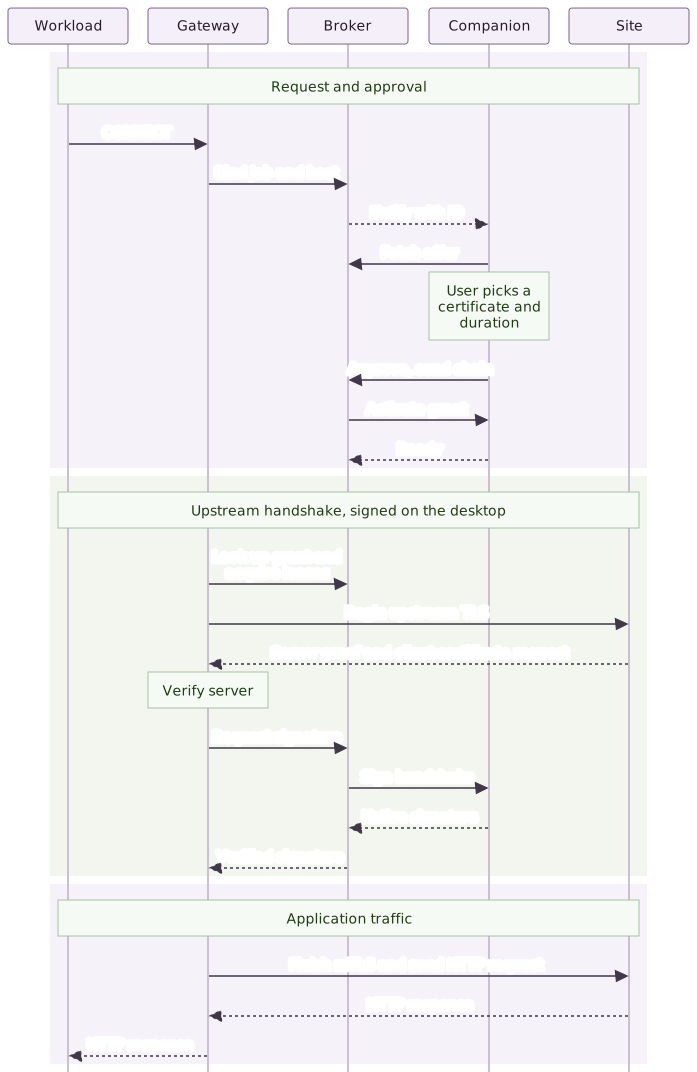
With two or more eligible identities the analyst must select one before Approve becomes available. A wildcard destination normally prompts for the exact requested host. If the administrator enables whole-wildcard approval, the prompt shows both the initiating host and the broader scope. The certificate's private key stays on the analyst's machine. Companion approval screen
For an explicit Request access action, your authenticated page calls your backend. Resolve the job from the session and Context, then call the Broker with the stored binding and server-selected host.
const { id, state } = await brokerPost("requests", {
  binding: issued.binding,
  host: "ledger.partner.example:443"
});
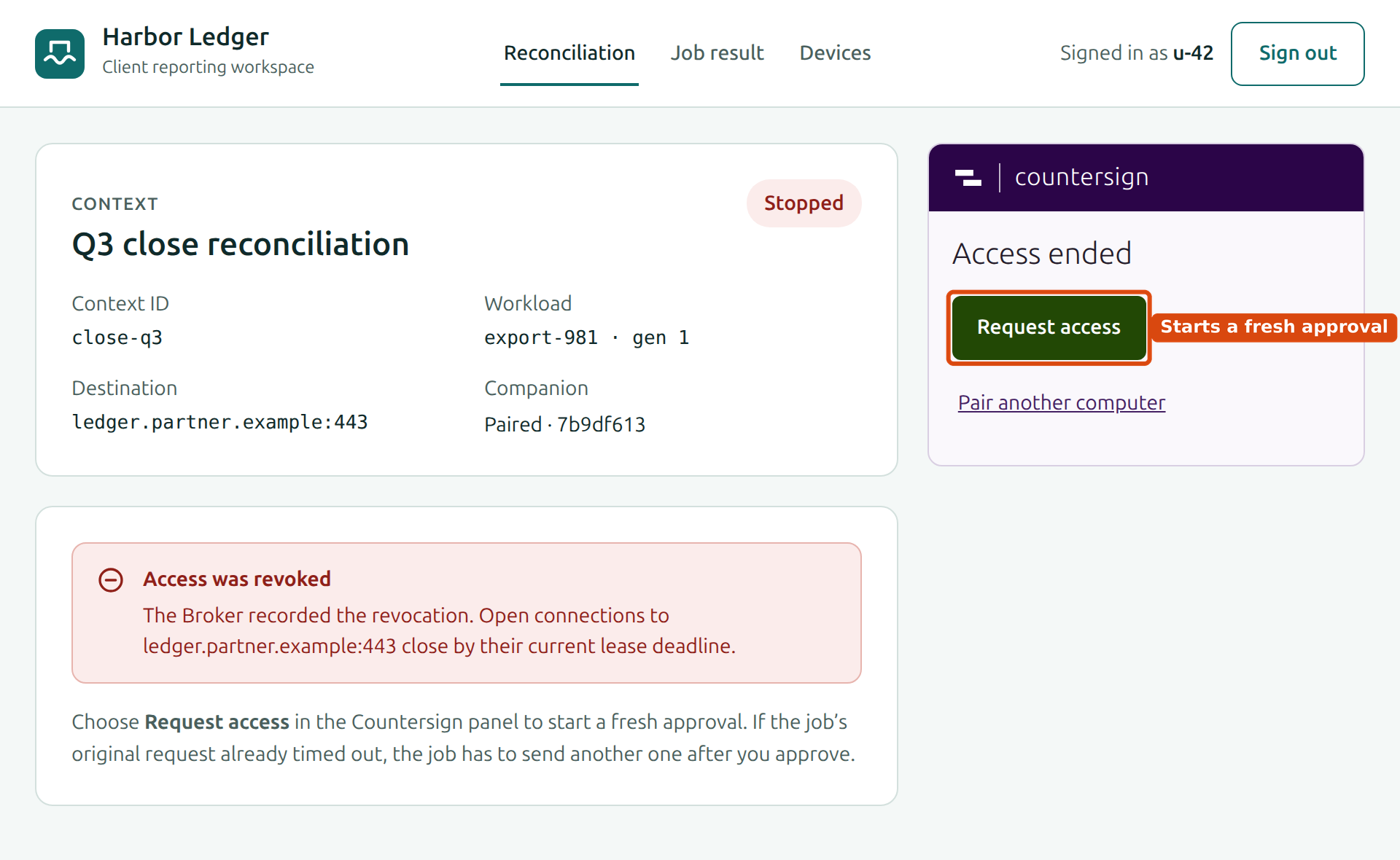
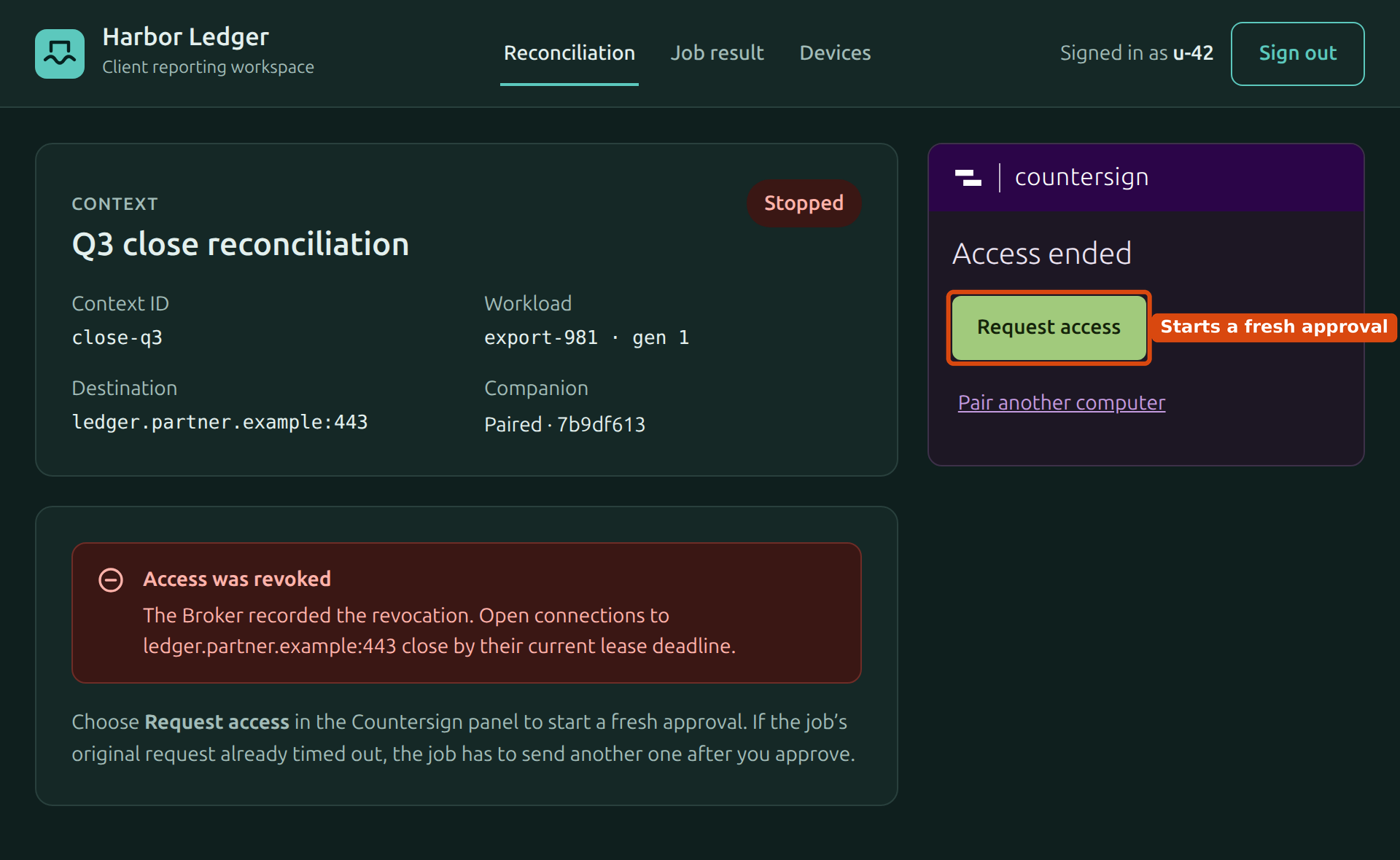
Return the approval ID to the page. An explicit request joins a matching pending approval or returns its current approved record. After denial, cancellation or expiry, an explicit request starts a fresh approval. If the original CONNECT timed out, the Workload must deliberately issue another request after approval. Widget adapter and notification handlers
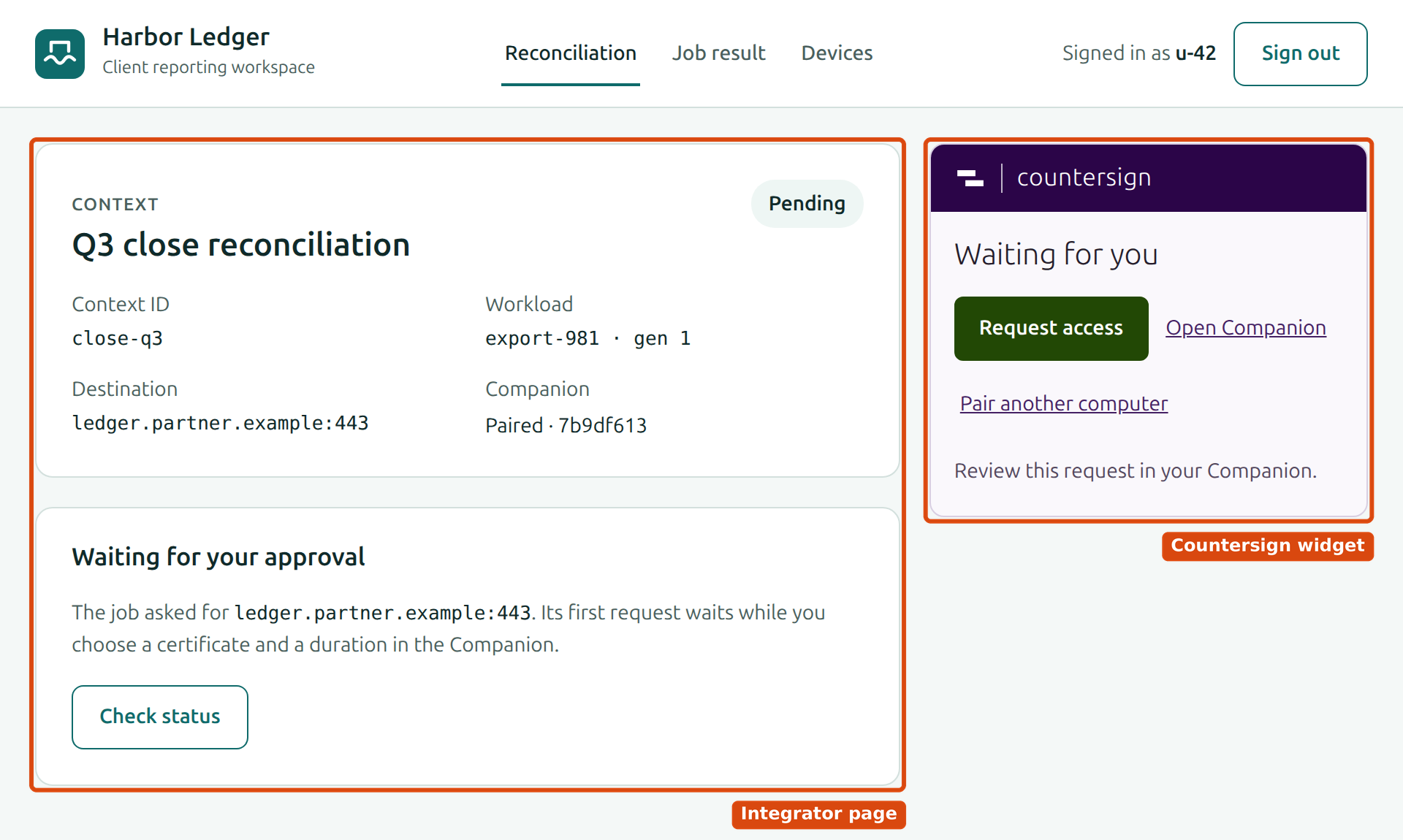
The widget draws only the pairing, request and launch controls in its own Countersign card. Your page explains the job, the pairing and what happens next. Restyle the widget
Show progress and end access
Query status with the session-derived user ID and the approval ID. Show “Approved” for a committed decision, “Ready for handshakes” when ready is true, and “Upstream accepted mTLS” only after upstream_mtls_accepted is true. Closing the Companion can leave an existing leased connection usable until its authority expires. A fresh handshake needs the winning Companion online. Status fields and failure handling
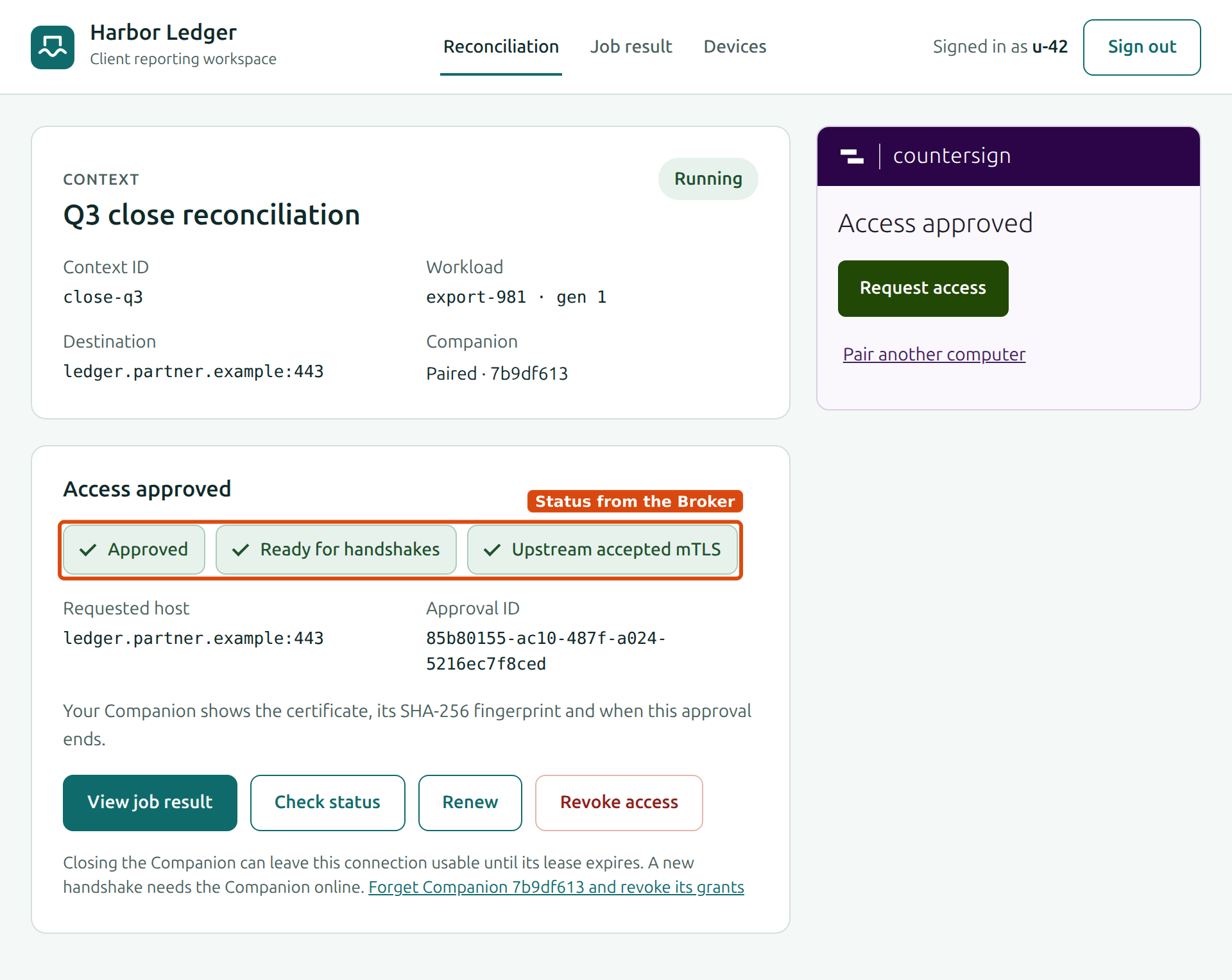
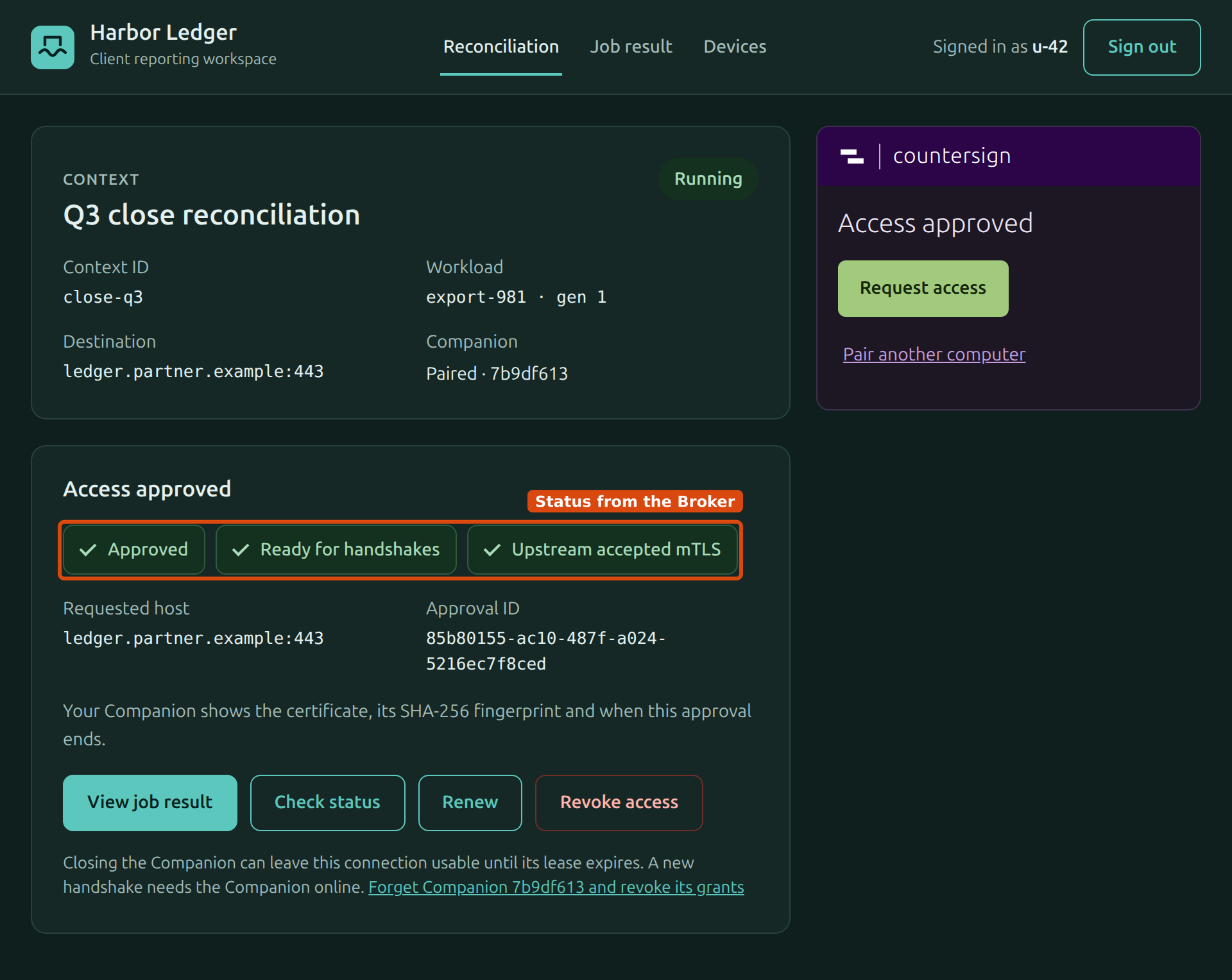
Retire the Workload when the job exits. Close the Context when the reconciliation itself ends. To withdraw one grant earlier, revoke its approval ID. After a denial, expiry or revocation, say how access ended and offer a fresh request.
In the demo, the upstream requires a client certificate and returns the leaf fingerprint it actually received. Compare it with the identity selected in the Companion. Demo upstream