Try Countersign with curl
In this walkthrough, curl runs in a container and calls https://site.test:9444/. The site requires a client certificate. The desktop holds the candidate identities. You can verify exactly which certificate the site received, then revoke the grant and try the same request again.
Start the local demo
Use a Linux desktop session and a regular user with Docker Compose access. Have the packaged Linux Companion or an unpacked build available. The launcher uses D-Bus, GNOME Keyring, libsecret tools, SoftHSM2, Chromium, and Python. On Ubuntu 24.04 the desktop prerequisites include dbus-daemon, gnome-keyring, libsecret-tools, softhsm2, libnss3-tools, apparmor-utils, and python3-venv.
Run from the repository root:
python3 -m venv .venv
.venv/bin/pip install -r examples/demo-integrator/test/fixture-requirements.txt
.venv/bin/python -m playwright install chromium
.venv/bin/python examples/demo-integrator/compose_demo.py \
  --app /absolute/path/to/countersign-companion
Replace the app path with your executable. If you have Chromium installed, you can skip the Playwright browser download and pass --browser /absolute/path/to/chromium. The launcher creates a disposable token, keyring, browser profile, and Companion profile. It builds the service images and prints the Integrator origin and the path to a temporary login secret. On Ubuntu hosts that restrict user namespaces, it requests sudo to load a temporary AppArmor profile for the demo and removes it on exit.
Pair the desktop
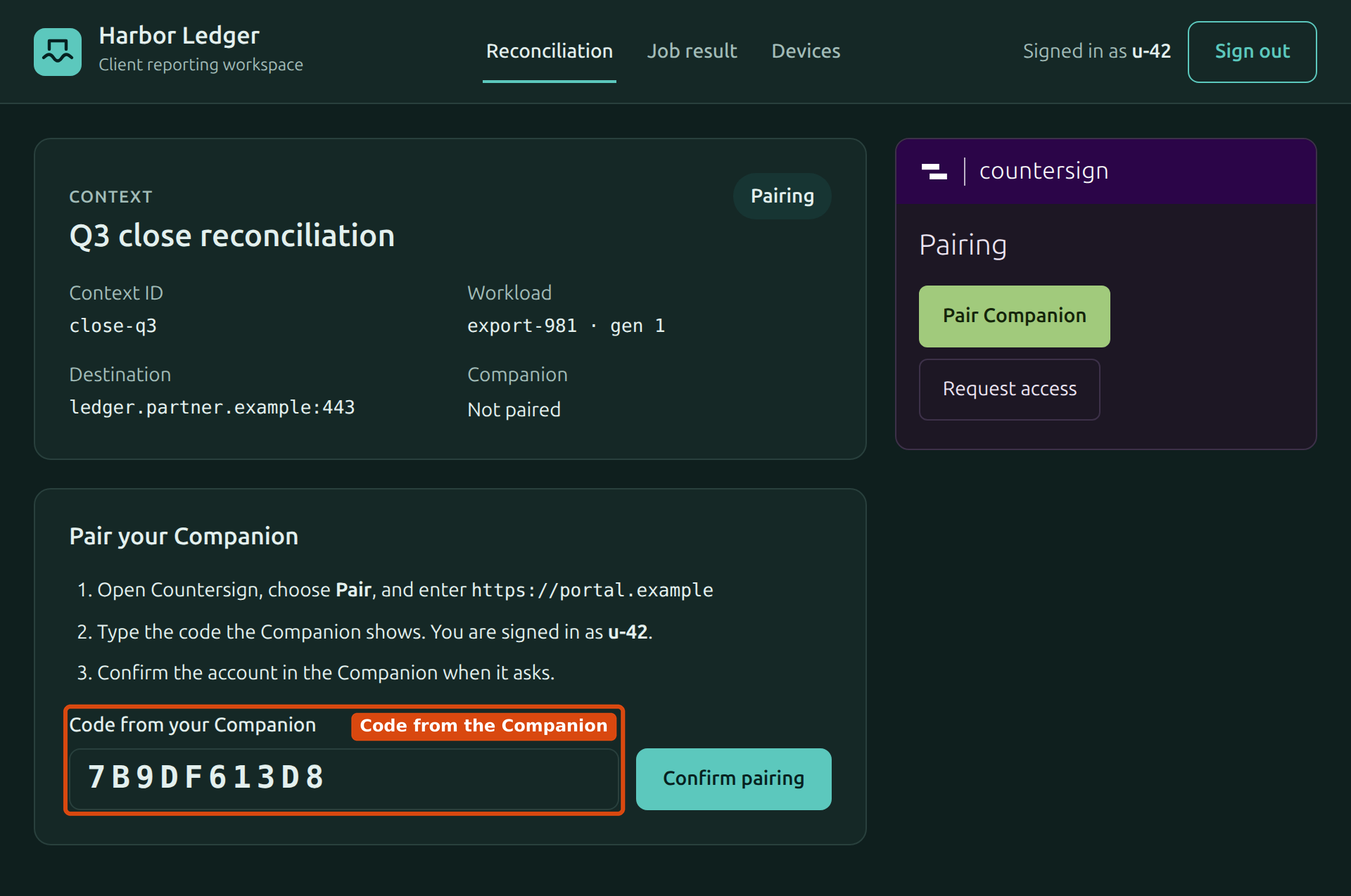
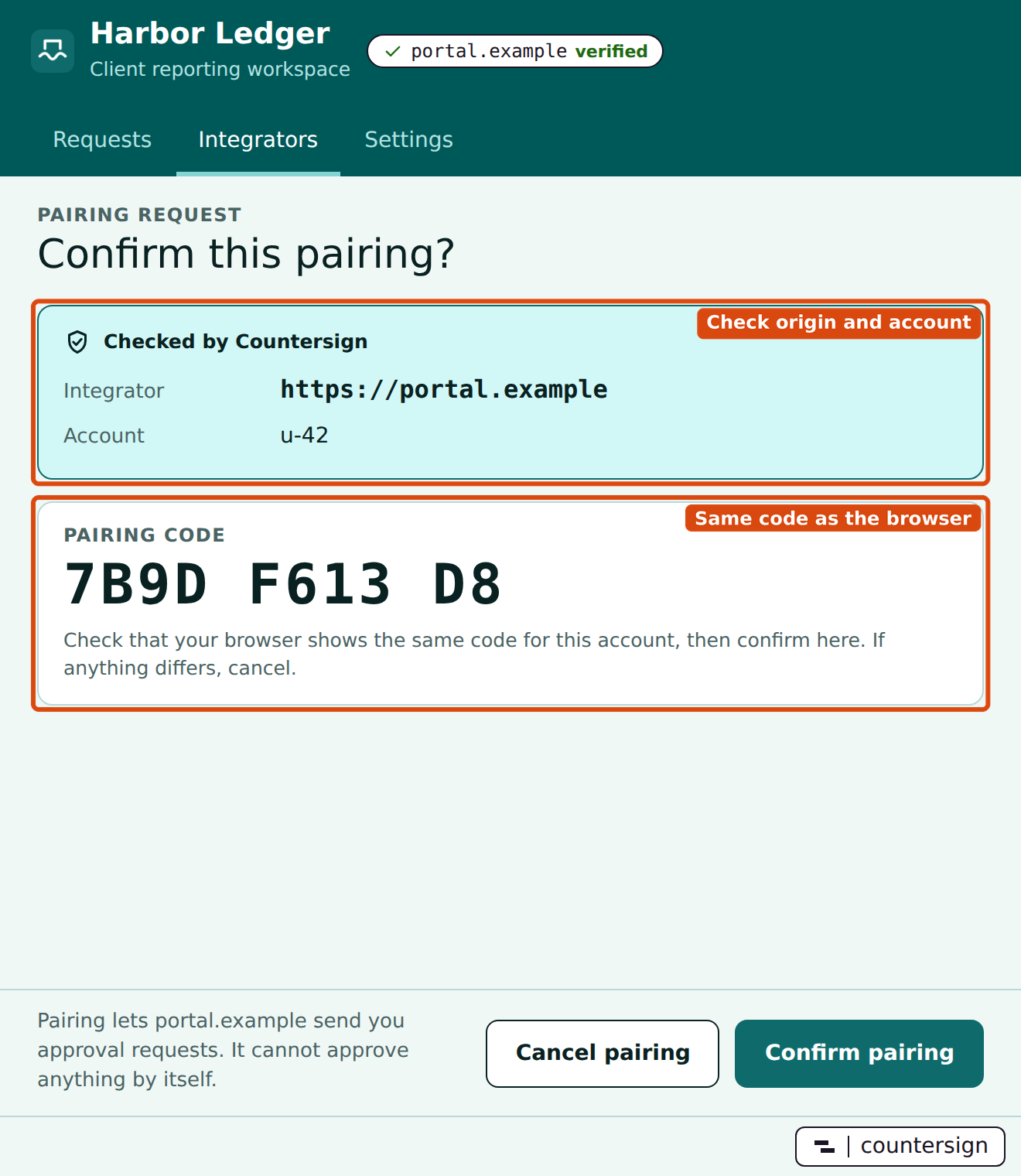
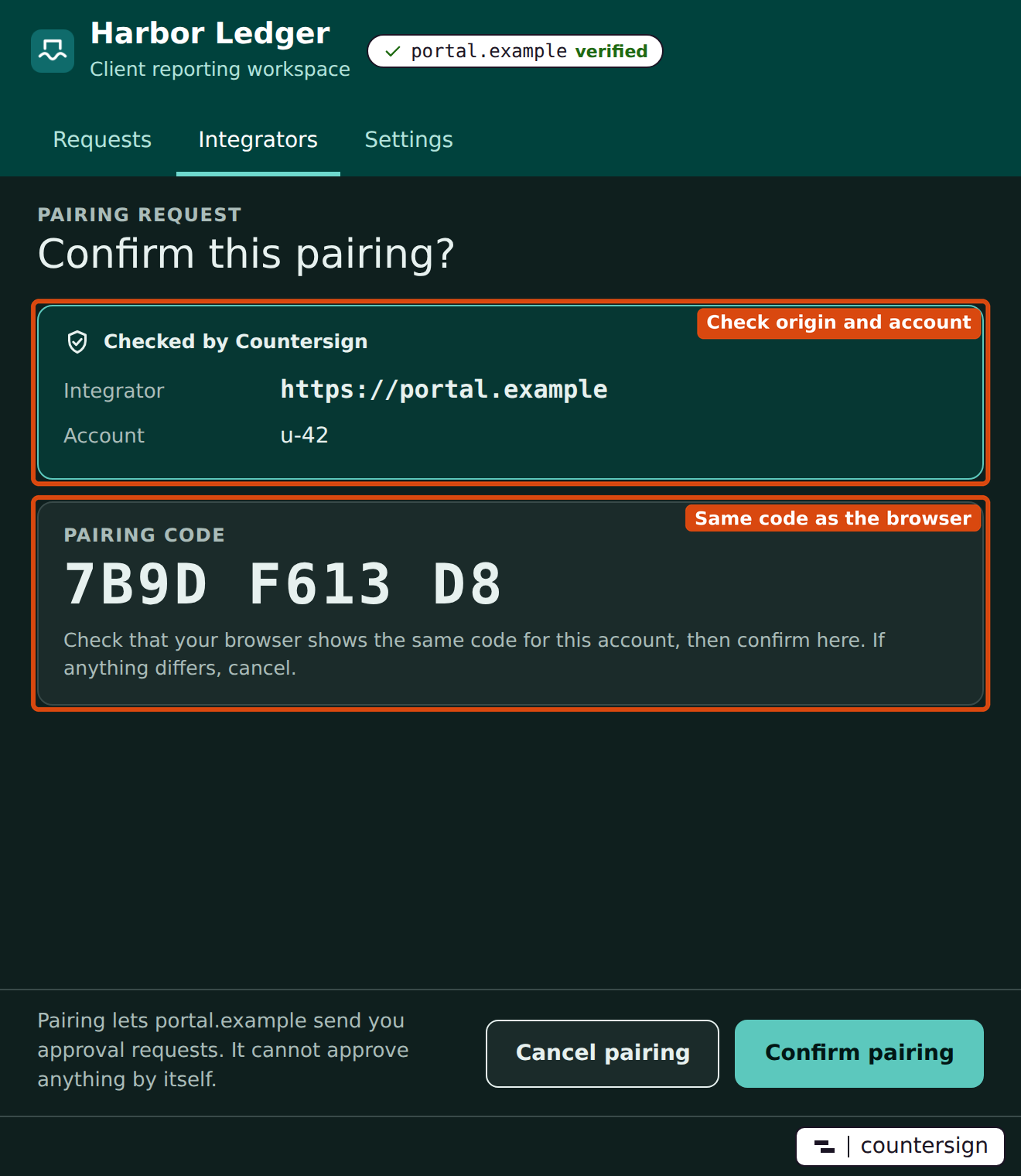
The screenshots below are rendered from fixtures with the example names from Add Countersign to a service: origin https://portal.example, account u-42 and host ledger.partner.example:443. Your run shows the printed https://localhost origin, demo-user and site.test:9444.
- Open the Companion’s Integrators tab. Enter the printed HTTPS origin in Integrator origin and choose Pair. The Companion shows a pairing code.
- In the browser tab opened by the Companion, sign in with the temporary secret from the printed file. Enter the pairing code shown in the Companion and choose Confirm pairing.
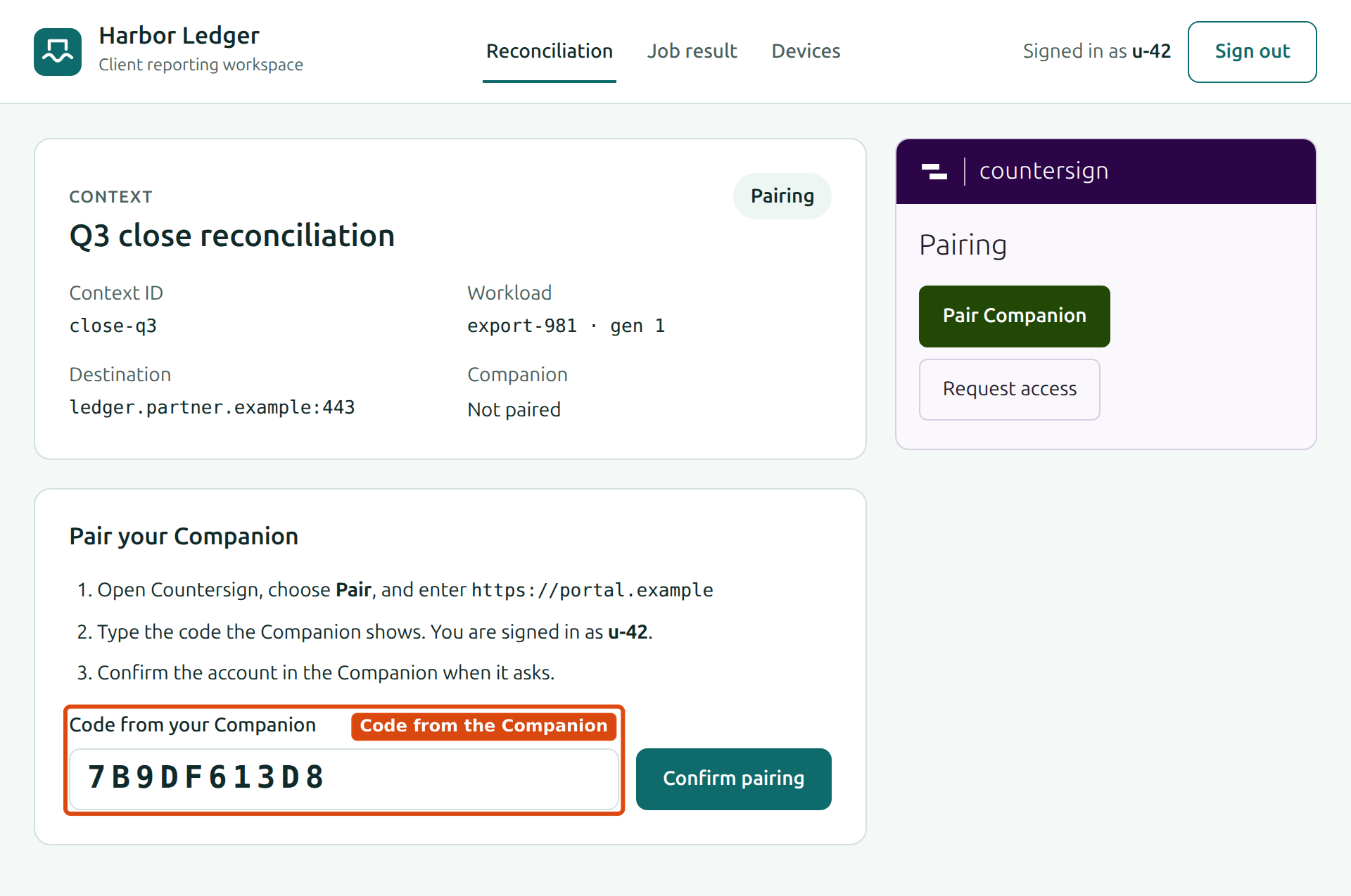
- In the Companion, check that the origin and account belong to this demo and that the code matches the browser. Choose Confirm pairing. The Integrator appears in the list with Connected.
Choose a certificate and verify it
Type curl at the launcher's prompt. The Workload already has the proxy address and the public sidecar CA. The first request waits while you decide, and the Companion opens its Requests tab.
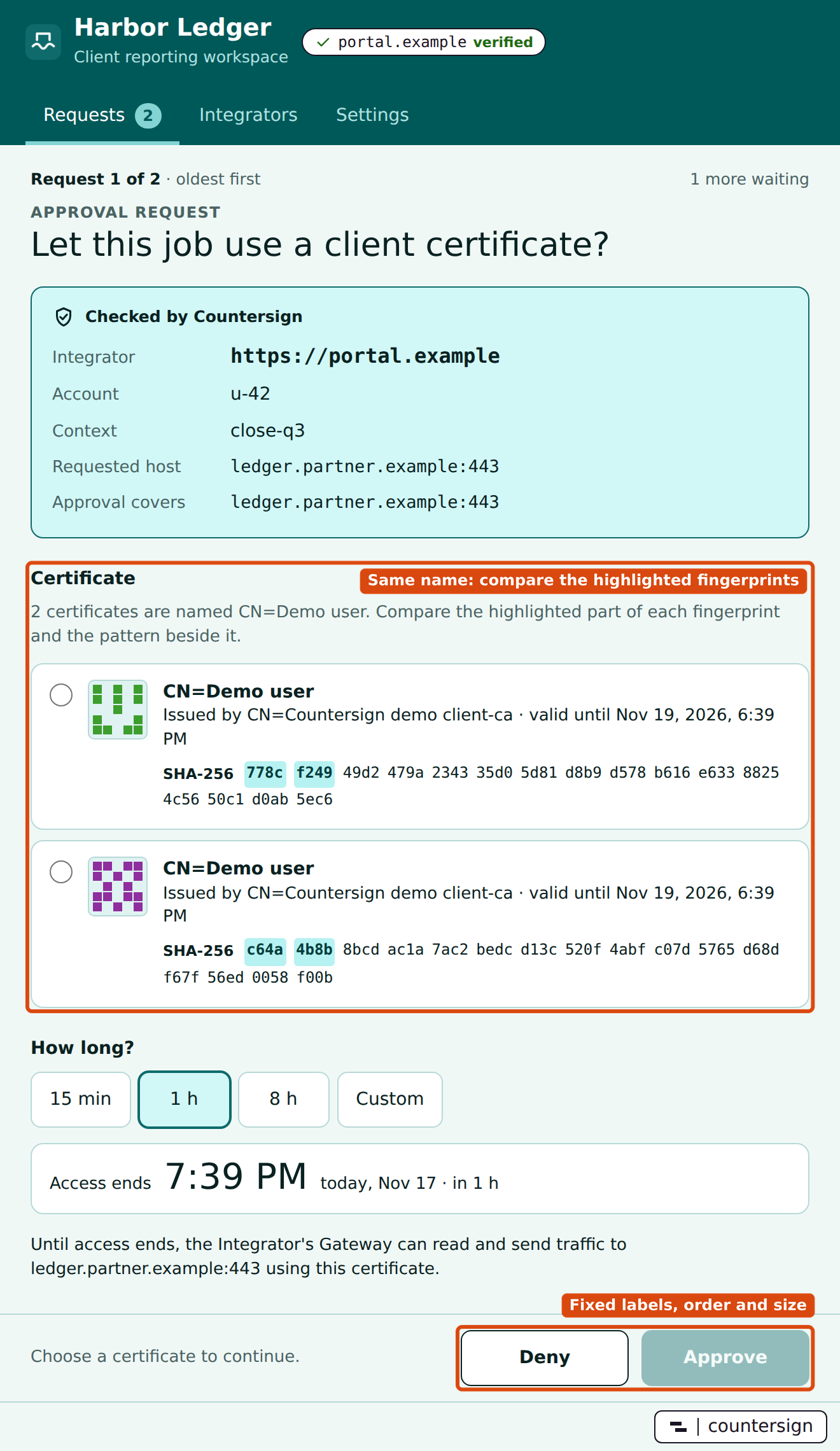
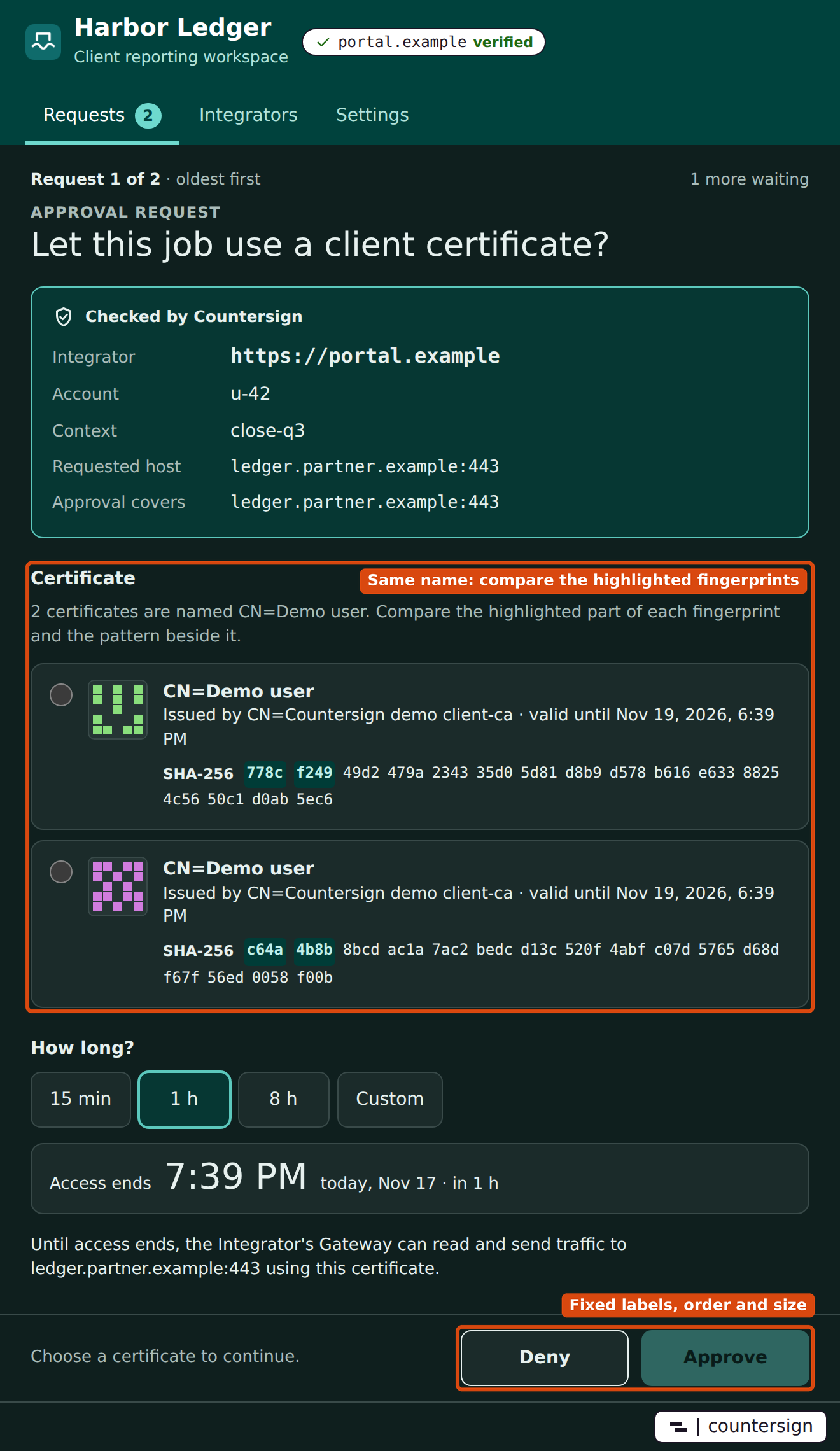
Read Integrator, Account, Context, Requested host and Approval covers under Checked by Countersign. Choose one certificate, note its SHA-256 fingerprint, pick a duration, check Access ends, and choose Approve. The site obtains the certificate from the authenticated TLS connection and returns its fingerprint. A capture from the demo returned:
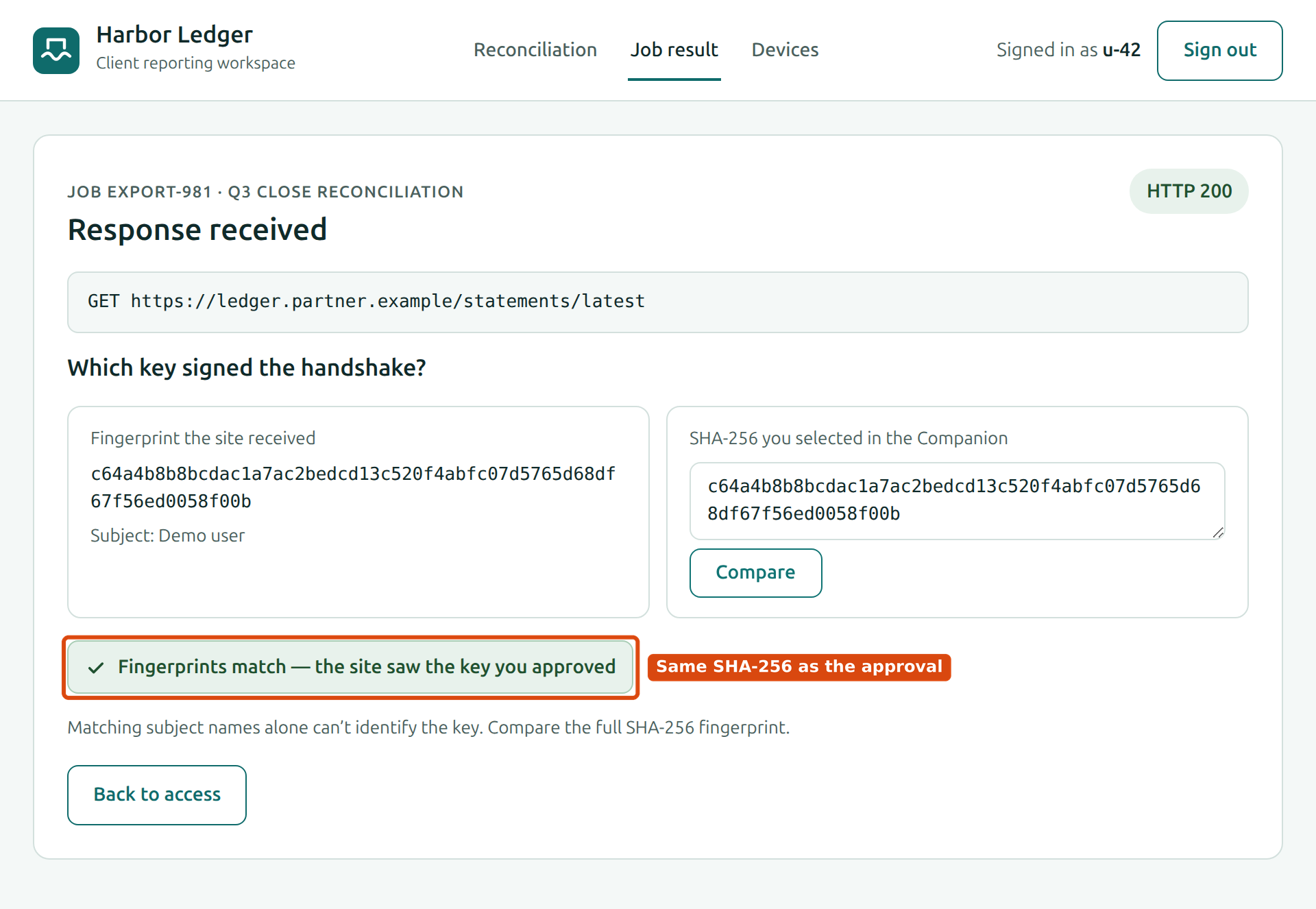
{"fingerprint":"c64a4b8b8bcdac1a7ac2bedcd13c520f4abfc07d5765d68df67f56ed0058f00b","subject":"Demo user"}
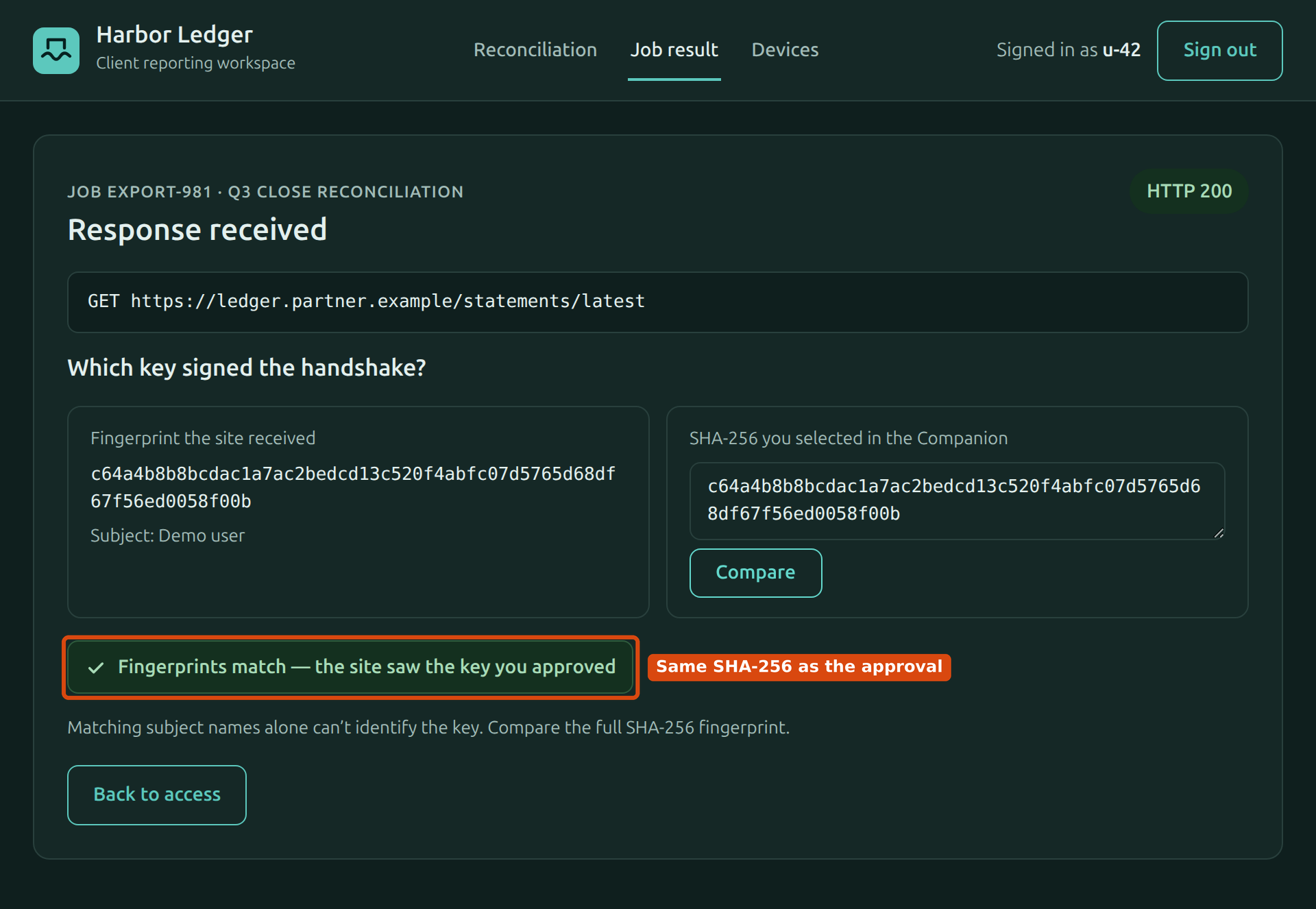
Each launch creates fresh certificates. Compare the response to the fingerprint you selected in your run. Matching subject names alone cannot identify the key that signed the handshake. The launcher also hands the result to the Integrator: open Job result on the demo page, paste the SHA-256 from the approval in your Companion and choose Compare.
End access
In the Companion, open Integrators, choose the demo Integrator and choose Revoke access under the approval. Wait for Broker recorded revocation, then type curl again. A new connection from that Workload should fail. An explicit Request access from the Integrator starts a fresh approval. Type quit at the launcher prompt to remove the demo containers and disposable local state.
If the request stalls, first look for Connected in the Companion, then for a pending request on the Requests tab. An empty certificate list points to desktop identity discovery. A request that fails after approval needs a check of upstream trust and certificate acceptance. Companion troubleshooting · Integrator troubleshooting